
Last tested: Early 2026
Preface
This post was published very recently and is based on hands-on testing of how Instagram and Pinterest are working together right now.
Shortly after publishing, I noticed a shift in how link behavior is handled—specifically how clicks are routed depending on where someone clicks within the Pin. I’ve updated this post to reflect what I’m currently seeing.
Given how quickly this feature is evolving, I suspect more changes may be on the way. I’ll continue testing and update this post as things develop.
Introduction
If you use both Instagram and Pinterest, you may have noticed that the way these two platforms connect has quietly evolved over the past couple of years.
While this feature isn’t new, recent refinements prompted me to revisit how the connection between Instagram and Pinterest works in practice.
I’ve been using and testing the Instagram + Pinterest connection for some time, and I wanted to share what I’ve observed—where it’s been helpful, where it may require a bit more intention, and how the role Instagram plays in your overall content ecosystem can influence whether this setup makes sense for your workflow.
Note on Terminology
Pinterest’s help documentation still refers to this process as “claiming your Instagram account.” However, in the current Pinterest interface, the setting appears under “Link to Pinterest.”
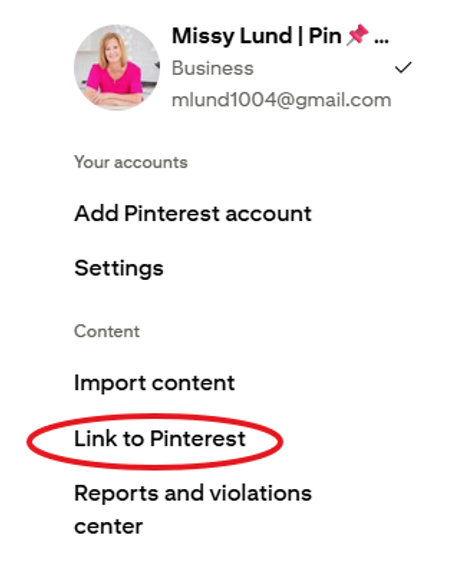
Because the terminology can be confusing, I’ll generally refer to this process as linking your Instagram account, while noting that Pinterest documentation may still use the term claiming.
Pinterest provides documentation on this process here: https://help.pinterest.com/en/article/claim-your-account
Linking Your Instagram Account to Pinterest: A Quick Recap
When Pinterest introduced the ability to connect Instagram accounts to Pinterest, it created a new way for content to flow between the two platforms.
Once your Instagram account is linked, Pinterest automatically creates Pins from your Instagram posts. This provides several potential benefits:
- Attribution when your Instagram content is shared on Pinterest
- Performance analytics for Pins featuring your content
- The ability to auto-publish new Instagram posts as Pins
Attribution means that Pinterest recognizes the content originated from your Instagram account. If another user saves that Pin or it spreads across Pinterest, the Pin still identifies your account as the original source.
For creators already producing content on Instagram, this opened the door to extending the life and reach of that content without uploading everything manually to Pinterest.
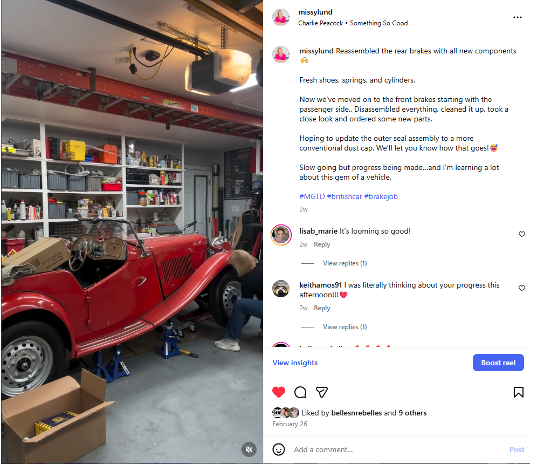
Here is a sample of a post from my Instagram account where I am restoring a 1953 MG TD:
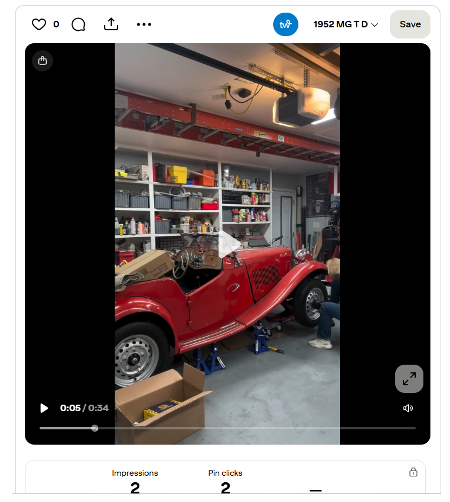
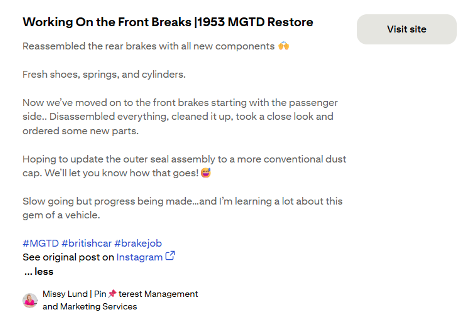
And here is how that same content appears on Pinterest:
Pinterest’s Original Approach to Instagram Auto-Publishing
When Pinterest introduced Instagram auto-publishing in June 2024, the feature was positioned as a way to “create once and publish twice.”
Pins created from Instagram posts included:
- The original image or video
- The Instagram caption
- A link back to the original Instagram post
Carousel posts were initially published as individual Pins.
Pinterest also emphasized attribution and analytics, ensuring creators received credit as their content was shared.
What’s Changed Since Then
Pinterest has continued refining the feature since its original rollout.
According to Pinterest documentation and product updates, several improvements have been introduced:
- Instagram carousel-style posts now appear as carousel-style pins on Pinterest, preserving the original format
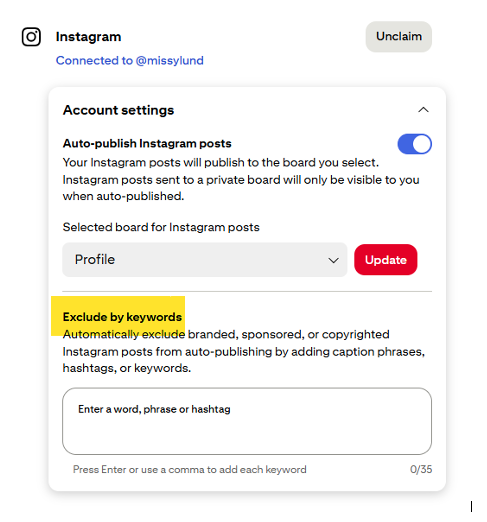
- Creators can filter posts using keywords or hashtags when auto-publishing
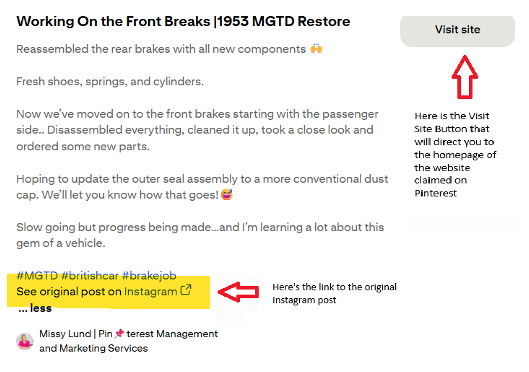
- If you have a claimed website domain, clicking Visit Site on these Pins directs users to your website rather than the Instagram post
Note: Keyword filtering for auto-published Instagram posts currently must be configured from desktop, as the setting is not available in the mobile interface.
At the same time, Pinterest maintains attribution to the original Instagram content by including a reference to the Instagram post within the Pin description.
These changes align with Pinterest’s broader goal of helping creators drive traffic to their websites while still acknowledging the original source content.
Timeline: Instagram + Pinterest Integration
June 2024 – Instagram Auto-Publishing Introduced
Pinterest introduced the ability to link (or “claim”) an Instagram account and automatically publish Instagram posts as Pins. These Pins originally linked directly to the Instagram post.
November 2025 – Feature Improvements Announced
Pinterest introduced updates including carousel support, keyword filtering, and the ability for Pins to link to a claimed website instead of Instagram.
Keyword filtering is in the “Link to Pinterest” settings as shown below:
What Pinterest Says About Linking Instagram
Pinterest documentation describes several benefits of linking your Instagram account:
- Pins created from your Instagram content are attributed to you, even if others save them
- You can track performance analytics for Pins featuring your content
- Instagram posts can be automatically published to Pinterest
Pinterest also notes that when you have a claimed domain, clicking the Visit Site button will take users to your website instead of the Instagram post.
At the same time, a link to the original Instagram post is included within the Pin description so users can still view the source content.
What I’ve Observed While Testing (Early 2026)
1. Pins Route to Your Website Homepage
In most cases, clicking the “Visit Site” button routes users to the homepage of the website connected to the Pinterest account when a domain is claimed.
However, in more recent testing, I’ve observed that link behavior can vary depending on where a user clicks and which device they are using.
On desktop:
- Clicking the Pin title follows the URL shown in the website field (if it has been edited)
- Clicking the “Visit Site” button routes users to the homepage of the claimed website
On mobile:
- Tapping the Pin title opens the Pin detail view (showing the description) rather than navigating externally
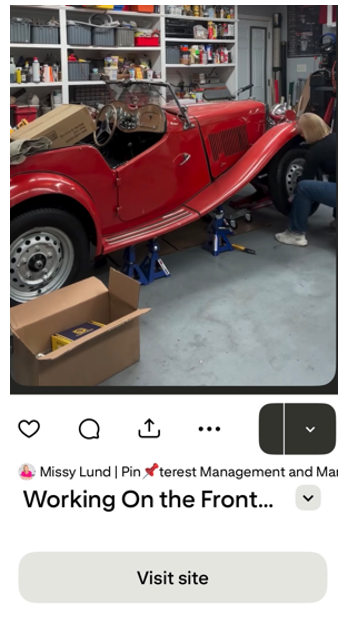
- Tapping the “Visit Site” button routes users to the homepage of the claimed website
This distinction is important, as user behavior—and where they choose to click—can influence how traffic flows from these Pins.
2. Instagram Attribution and Pin Edits
Pinterest continues to reference the original Instagram post within the Pin description, preserving attribution to the source content.
A clickable reference to the original Instagram post appears within the description and remains visible even after editing the Pin.
In testing, I’ve observed that how this information is displayed can still vary slightly depending on device, but attribution itself remains intact.
As with many Pinterest features, this behavior appears to be actively evolving. I’ve already observed changes while testing, and it’s likely additional refinements are still in progress.
3. A Social Board Is Automatically Created
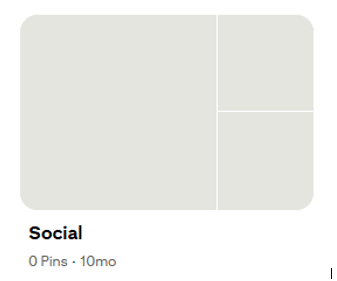
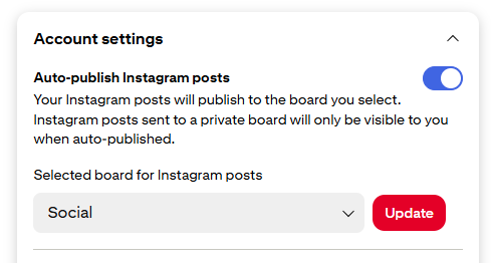
When auto-publishing is enabled, Pinterest automatically creates a board called Social which looks like this:
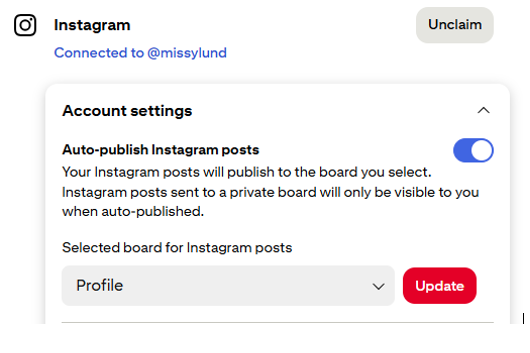
Previously, on some accounts the default location for these Pins was the Pinterest profile itself. Today, depending on when the account was connected, Pins may appear in the Social board or follow the previously configured destination.
In either case, the board destination is editable in Pinterest settings, allowing creators to choose where new auto-published Pins are initially saved.
Here is a sample of a new account set up with pins directed to the new “Social” board:
Here is my account that was set up with pins directed to my Profile. Directing pins to your profile no longer appears to be an option:
4. Using the Social Board to Seed New Boards
Pinterest will often suggest relevant board names for auto-published Instagram content, which signals that it expects creators to review and move Pins into more appropriate, topic-specific boards.
This isn’t entirely new behavior. Previously, Pinterest also suggested new boards when Pins were saved to the “Unorganized Ideas” section of your profile.
In working with a newer account, I’ve been experimenting with using the content in the Social board to seed newly created boards with content.
By moving Pins from the Social board into those new boards, it provides a starting point for board population while keeping the workflow relatively simple. This may be especially helpful when setting up a new account or building out board structure for a client.
This may not be the intended use of the Social board, but in practice, it may be a useful way to organize and distribute content while getting new boards established.
I’m still testing this approach and will be watching how it performs over time.
When Context Matters More
In my own experience, how well this feature works depends largely on the role Instagram plays in your overall content ecosystem.
For example, not every Instagram account (or a portion thereof) may function as an extension of a business website. Some accounts may serve different purposes — such as documenting projects, hobbies, or personal interests like mine.
In my case, as I mentioned previously I use Instagram to document the restoration of a 1953 MG TD, a long-term restoration project I’ve been sharing over time. That account functions more like a visual project journal than a marketing channel. I have a board on my account called 1953 MG TD Restoration where these pins reside.
However, when those Instagram posts auto-publish to Pinterest and route visitors to my business website homepage, the destination doesn’t quite match the context of the content.
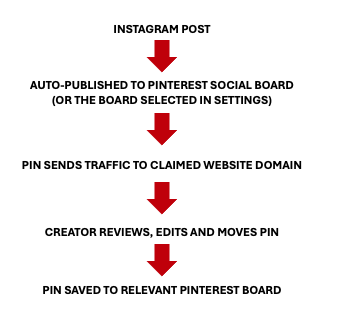
How Instagram Posts Flow Into Pinterest
Based on testing, the workflow for Instagram auto-publishing appears to follow a pattern similar to this:
What This Means for Your Pinterest Strategy
The Instagram-to-Pinterest connection can be a helpful tool, but it works best when it aligns with your broader content strategy.
Because Pinterest now prioritizes sending traffic to claimed websites, auto-published Pins function a little differently than traditional Pins created specifically for Pinterest.
While the feature reduces the effort required to publish content to multiple platforms, it may still require some light organization to fit into a structured Pinterest strategy.
Reviewing Pins that initially appear in the Social board and moving them to relevant topic boards can help maintain the context that Pinterest relies on for discovery.
For some creators, this feature may also represent a low-effort way to begin building content on Pinterest, especially for those who may not yet have the time or resources to implement a full Pinterest pinning strategy.
In practice, the feature works best as a supplement to a Pinterest strategy rather than a replacement for it.
Key Takeaways
- Instagram posts can automatically become Pins
- Pins may send traffic to your website instead of Instagram
- Attribution to Instagram is still preserved
- Pins may initially appear in a Social board
- Descriptions may behave differently after editing a Pin
- Automation still benefits from review and organization
Final Thoughts
The way Instagram and Pinterest work together today reflects Pinterest’s ongoing focus on outbound traffic, attribution, and creator ownership.
The refinements made over time give creators and businesses more flexibility while allowing content created for Instagram to reach a wider audience on Pinterest.
At the same time, as this integration continues to evolve, it’s helpful to observe how the feature behaves in practice and decide how it fits into your own workflow.
As Pinterest continues refining this integration, it will be interesting to see how creators incorporate Instagram content into their Pinterest strategies over time.
Let’s work together.
If you want to put more focus on your Pinterest marketing and need strategic support, reach out or take a look at my Pinterest Management Packages to see how I work.
Prefer DIY?
Get my Free Pinterest Business Account Quick Start Checklist to make sure your account is set up correctly from the start.
For a deeper dive, check out my How-To Guide to Use Pinterest to Attract Clients and Sales.
Share: