Don’t you just love it when you stumble upon something by complete accident that ends up being a total game-changer for your business?
That’s exactly what happened to me last week. I was in Canva working on pins for a blog post, when I clicked a button I hadn’t noticed before in my Chrome browser.
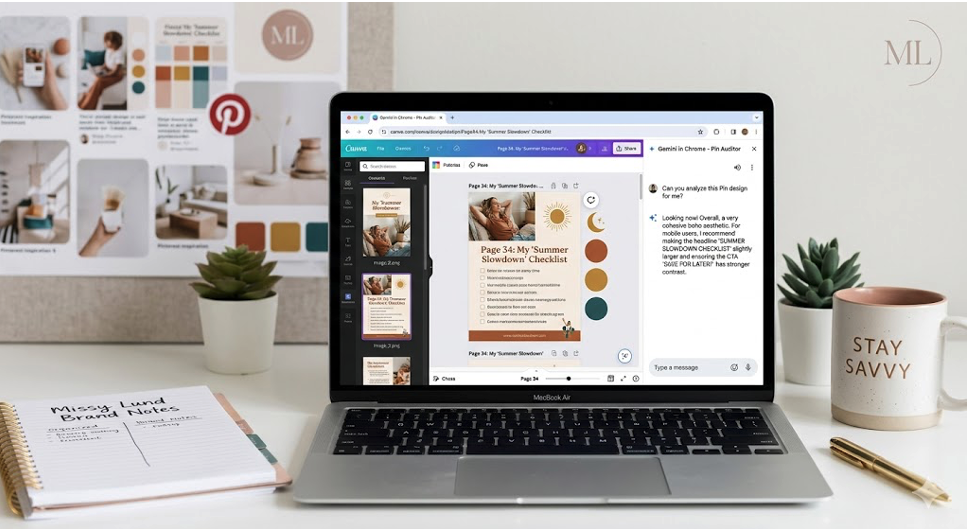
Suddenly, I found myself designing and in a real-time collaboration with Gemini, an AI assistant that could actually “see” my canvas and give me feedback as I moved elements around.
It wasn’t just a chatbot; it was an AI assistant that could actually “see” my canvas. It felt like having a focused “Design Auditor” built right into my browser—a second set of eyes to help me quickly check mobile readability, font weight and many other aspects of my design while I stayed focused on the high-level strategy.
Today, I’m sharing exactly how I’ve integrated Gemini in Chrome into my workflow to take the guesswork out of pin design and streamline the entire process.
The Tech Tips: Integrating Gemini into Your Workflow
If you’re wondering how to get started, the process is straightforward.
You don’t need to install a separate extension or pay for additional design auditing software.
While this post focuses on how I use it within Canva, keep in mind that this feature works on any website, making it a versatile tool for your entire business workflow.
- The “Sparkle” Icon: Look for the Gemini icon (the blue/purple sparkle) in your top-right Chrome toolbar. It looks like this:
Most users won’t need to download an extension—it’s a native feature being rolled out directly into the browser!
- Don’t See the Sparkle? If it’s missing, don’t worry. Click the three vertical dots (the Chrome menu) in the top right corner of your browser. Go to Settings > Google Services, and make sure “Gemini” or “AI Features” is toggled to ON.
- Sign In: Ensure you are signed into your Google account in Chrome so your assistant is ready to work.
- The “Side-Saddle” Workflow: Once you click that sparkle, the panel slides out on the right. This allows you to design in Canva on the left while chatting with your AI partner on the right.
- The “Look” Feature: You can specifically ask Gemini to “look at my current tab.” It takes a snapshot of your design and uses multimodal AI—meaning it “sees” your colors, fonts, and images just like a human would.
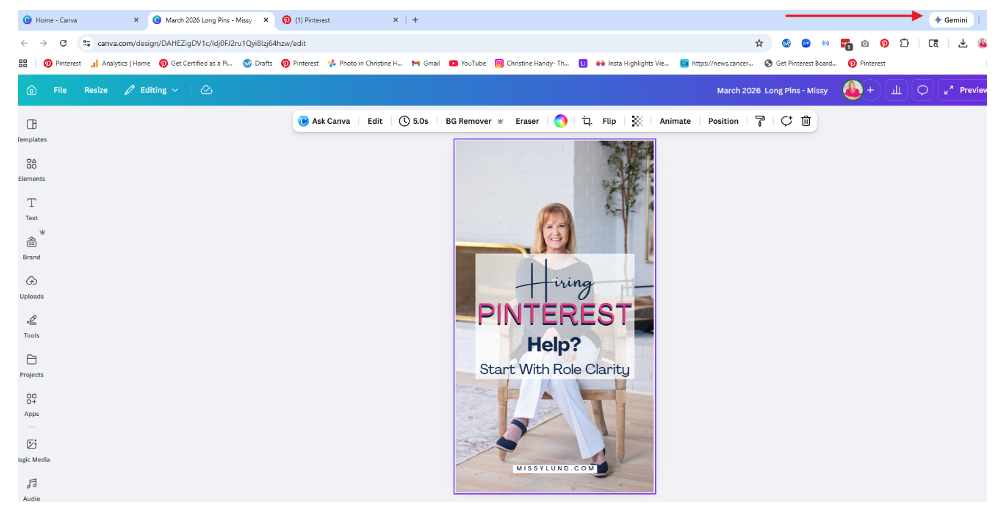
Step 1: Finding Your New Design Partner
Here is where you can locate the Gemini sparkle in Canva: This is your gateway to real-time design help!
Step 2: Starting the Conversation
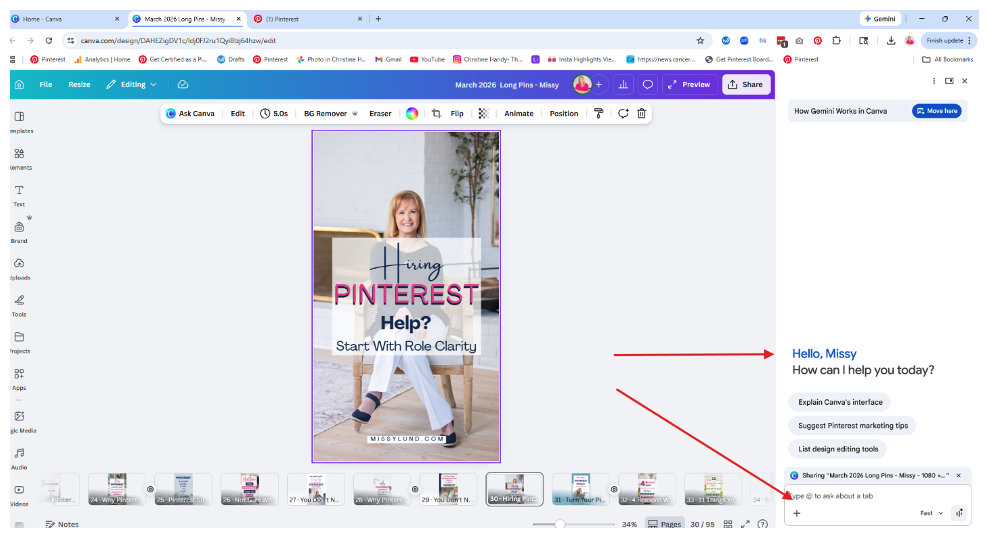
Once you click that icon, your screen will split and a side panel will open, inviting you to chat. This is where the collaboration begins!
At the bottom of this panel, you’ll see a chat box. This is your direct line to your AI design partner.
You can use this space to enter specific “design auditor” prompts—like the ones I’ve listed below—to get real-time feedback on your layout, fonts, and colors without ever leaving your Canva tab.
A Real-World Example: The “Hiring Help” Pin
To show you how this works in action, let’s look at a pin I was just working on called “Hiring Pinterest Help? Start With Role Clarity.”
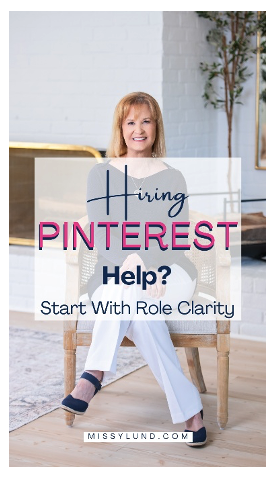
I asked Gemini for a quick audit, and it pointed out something I had missed: My “Hiring” script font was beautiful but a bit thin for a quick mobile scroll.
What the “Audit” looked like: I asked: “Please look at the text on page 30. Is it easy to read for someone scrolling on a phone?”
Gemini’s feedback: “The script font for ‘Hiring’ is elegant, but the thin lines may get lost against the light background of the photo. Consider adding an outline or a shadow to increase the contrast for mobile users.”
The Fix: Instead of a traditional shadow, I used the Outline effect. The trick? I set the outline color to the exact same color as the font itself and bumped the thickness to 10.
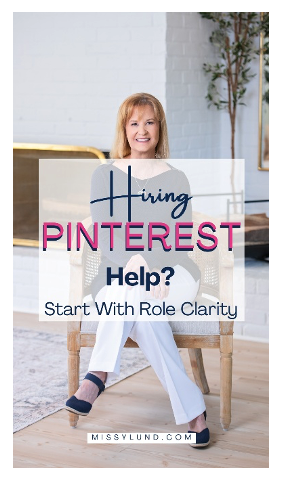
This effectively “thickened” the font, making it bold enough for a mobile scroll while keeping that high-end script look I love. It’s a game-changer for accessibility!
Toolbar Secret: Canva’s menus can change depending on the font you choose! For example, the font I used here—Amsterdam One—doesn’t have a “Bold” option.
When you’re stuck with a thin font, look for the Outline effect. It’s my favorite “plan B” for creating a manual bold look that makes script fonts readable on Pinterest.
Just a tiny bit of thickness (around 10-15) in the same color as your text makes it look professional, accessible, and scroll-stopping.
Prompts to “Steal” for Your Next Design Session
Not sure what to say to your new AI design partner? I like to start simple! You don’t need to be a “prompt engineer” to get great results. Just start with the basics:
- The Conversation Starter: “Can you please evaluate this pin?” (This is my favorite way to kick things off as it lets Gemini give you a general ‘vibe check’ before you dive into specifics!)
- For Mobile Optimization: “Is the headline large enough to be read on a mobile screen while someone is scrolling fast?”
- For Engagement: “I’m using the ‘[Your Current Headline]’ hook. Can you suggest three more provocative variations of this headline that might get more clicks?”
- For Layout Flow: “Is the visual hierarchy clear here? Where is the viewer’s eye going first, and does it lead them to the Call to Action at the bottom?”
- For Pinterest SEO: The “Double-Data” Strategy
The Prompt: “Based on this design, what are xx number of keywords I should include in the Pin title and description to make sure it reaches the right audience?”
Pro Tip: While Gemini is great at pulling keywords from your design, the real magic happens when you combine it with your own Pinterest research.
How to do it: Open a second tab to the Pinterest Trends tool or simply use the Pinterest search bar to see what’s auto-populating for your topic. If you’re not sure where to start, check out blog post The Best 4 Ways to do Keyword Research on Pinterest. Then, come back to the chat and say:
“I found these 3 trending keywords on Pinterest: [Keyword 1, 2, and 3]. Can you help me naturally weave these into a Pin description for the design I’m working on?”
Because Gemini can “read” across your tabs, it can take the data you found in one window and apply it to the design you’re building in Canva.
For example: If you have a Google Doc or Sheet on your Google Drive filled with your top-performing keywords, you can simply ask Gemini to reference that specific file while you have your Canva tab open.
It’s the most efficient way to ensure your pins are both visually beautiful and strategically searchable without the constant back-and-forth copying.
Why This Changes the Game for Entrepreneurs
The reason this is such a game-changer for my workflow is the mental load. Usually, designing requires one part of my brain (the creative side) and auditing requires another (the strategic side).
By using Gemini in Chrome, I can stay in my creative “flow” in Canva while the AI handles the strategic checklist.
It’s like having a safety net that catches my typos, identifies my alignment issues, and pushes my marketing copy to be better, all in real-time.
It saves me hours of second-guessing and ensures that when I hit “Publish,” my pins aren’t just pretty, they’re high-performing.
Ready to Try It?
Open up your latest Canva project, fire up the Gemini side panel, and ask it for a “design audit.” You might be surprised at the brilliant suggestions it has for you!
If these tips helped you feel more confident in your pin designs, follow me and save this pin to your ‘Pinterest Tips’ board so others can discover this shortcut to high-performing pins!
Let’s work together.
If you want to put more focus on your Pinterest marketing and need strategic support, reach out or take a look at my Pinterest Management Packages to see how I work.
Prefer DIY?
Get my Free Pinterest Business Account Quick Start Checklist to make sure your account is set up correctly from the start.
For a deeper dive, check out my How-To Guide to Use Pinterest to Attract Clients and Sales.
Share: